
SECTION 5: How To Find and Install Church WordPress Plugins
WordPress Plugins were developed to function as extensions of your actual Church WordPress Plugin installation.
Most of these are created by developers who are not directly associated with the WordPress company. So this means there are various levels of quality that you will run into when using plugins.
You can, however, find plugins that can do about anything you want to accomplish on your website. But you need to be careful about what you choose. If the plugin author is no longer updating the plugin, you could be leaving yourself open to getting your site hacked in the future.

There are at least 3 things you can look for to help you choose a safe plugin.
- User Reviews and how many Stars it has. [5 is the best]
- Version of WordPress that it is compatible with. You are looking for 100% compatibility with the most recent version of WordPress. You can find out what the most recent version is by going to WordPress.org and looking at the Download WordPress button. One of the buttons should include the current version number on the button. For example WordPress 4.4
- Date the Plugin was last updated. If it has not been updated in a year or two, you may want to stay away.
- Is the Plugin author “Automattic”? This is the company that created WordPress. If the plugin has been authored by them, then it is most likely very safe to use.
Where can you find quality WordPress Plugins?
- Google Search: Search for Church WordPress Plugins that can do the specific task you are looking to accomplish with your website. Search for Event Calendars, Audio Players, Podcast Plugins or whatever you are attempting to do.
This is a great way to do research and find information directly on the plugin authors’ website, but also to find reviews from real people who have already used the plugin.
- WordPress Plugins Website: Go to www.WordPress.org/Plugins to access thousands of them. This site has user reviews, screenshots, installation files, FAQ pages and support.
In fact, you will want to create a free account on this site as it allows you to access support and ask questions if you run into problems with specific plugins.
- WordPress Dashboard: Once you have Googled and checked the WordPress Plugin site to find the one you need, the simplest way to install it is in your dashboard. You can also search for plugins in the dashboard, but it is more limited than options 1 & 2.

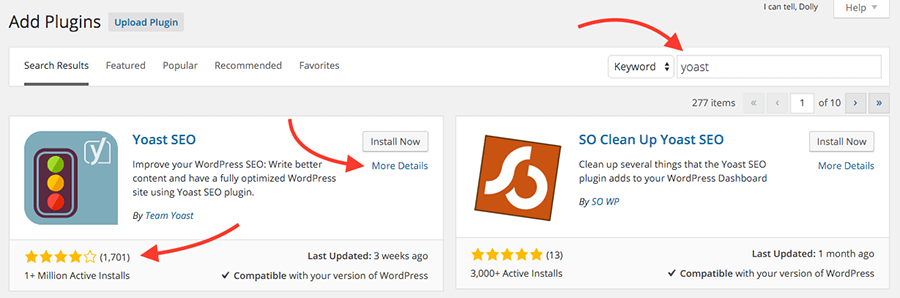
To search for and install a new plugin in the dashboard, go to “Plugins” in the left sidebar then click “Add New”. You will search for the plugin you want in the search box, then your options will show up below.
You can see their Star Rating as well as a link for “More Details” that will bring up the same basic information you would see on the WordPress Plugin site.
How do you Install and Use WordPress Plugins?
You can choose to install plugins using an FTP software, which is a slightly more complicated method than you may want to use. If you are a beginner, I would suggest using the second option of installing inside WordPress.
- FTP Method: If you are already used to using FTP, you will login to your site and go to the root folder [most likely public_html], find the wp-content folder, then the plugins folder. You will upload the files you downloaded from the WordPress Plugin site or the plugin authors site, and then you will see the plugin in your WordPress Dashboard under “All Plugins”. Find it and click “Activate”.
- WordPress Dashboard Method: If all of that FTP explanation sounds like Swahili to you, you will want to install your plugins using the WordPress Dashboard easy install option. I have already explained how to find the plugin you want above in the “Add New” Plugin section, and also explained where you can find quality plugins.
Once you find the plugin you want, click the “Install Now” button. WordPress will install the plugin for you. After a minute or less the installation will be complete. There should be a text link or button to “Activate” the plugin. Click it, and it will complete the activation and it should be working.
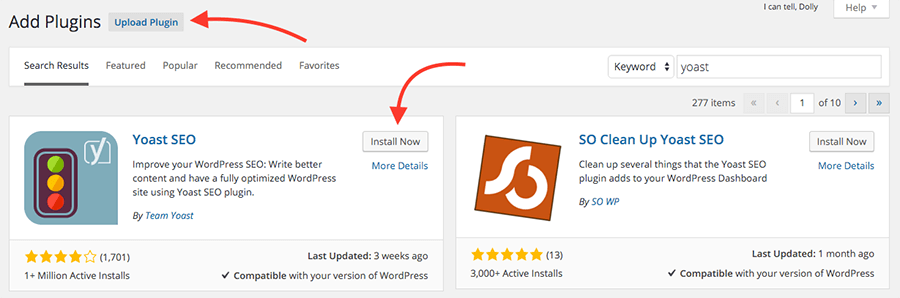
You can also upload a plugin you find on another site. When you are in the “Add New” section you should see an “Upload Plugin” button. Click that and you will have the option to choose a plugin zip file from your computer.
Once installed, some plugins have additional settings for you to make decisions on, and some just work without you having to take additional steps.
If there are options for you to adjust, you will find them in the left sidebar. This may show up as a new main link in the sidebar, or under one of the ones already in place like “Tools”. After installing plugins, search the sidebar thoroughly to find your plugin settings and make adjustments.
A Word of Caution about Plugins and Themes
The majority of these are NOT created by the company that developed WordPress. So they may not always be kept current with new versions of WordPress.
There could be a time when you upload or update a plugin, and either the site or that plugin functionality breaks. You may find that something is incompatible with your current version of WordPress or Theme design.
It is extremely important that you create backups of your website files and databases BEFORE updating a plugin or theme.
This will save you a ton of headache because if something breaks, you can just re-upload the backup over the updated version. This would have to be done with FTP [File Transfer Protocol program like Filezilla], but it is much better than having to try to fix something that is broken with NO backup.
The flip side of that is that if you do not keep your plugins and themes updated, you are leaving yourself open to your website being hacked. This is something you DO NOT want to have happen as it is a huge mess.
So remember to…
- Use reputable plugins and themes
- Create backups of files and databases before updating
- Run regular updates of your WordPress install, plugins and themes
What if you run into problems with your Church WordPress Plugins?
There may be a situation that you run into that is beyond your ability to handle or a WordPress issue that you cannot fix. First step is to check with “Live Support” to see if they can help you fix the issue.
If not, there is a company that can handle these issues for you. Go to the link below and click “Sign up Today”. You will see options to either get a monthly maintenance plan, or you can request a fix for a single issue. The monthly plans also include keeping your website, themes and plugins updated as well.
>> WordPress Maintenance Help Link…
https://op139.infusionsoft.com/go/wpcurve/findingyourbusiness
What are some Plugins to consider adding to and configuring for your WordPress Installation
Akismet: This Blog Spam filter comes preinstalled and it already in your WordPress Plugin dashboard. Follow the instructions in your dashboard to get an API key that will activate it. Get rid of the Spam in your life!
Yoast & Yoast Google Analytics: Search Engine Optimization Plugin
iThemes Security: We will go over this one in the Security Section below.
Bluebrry PowerPress for Podcasting: Turn your blog into a podcast.
Social Media Sharing Buttons: Add sharing buttons to the bottom of the posts and pages on your website.