
SECTION 3: Use the Easy WordPress Install Tool
It used to be necessary to go through a complex series of steps to install WordPress. Now many website hosts, including Bluehost, offer an Easy WordPress Install option.
You can do it the hard way if you want using a complicated series of steps, uploading files via FTP and creating a database. But I would not recommend that for someone who is new at this.

So we will only look at how to install using this simpler
Easy WordPress Install option.
Remember throughout this entire tutorial, the look of the sites mentioned and shown in the screenshots can change at any time. The tools and links should still be there however.
If you find that a site does not look like the screenshot, simply search until you find the correct links.
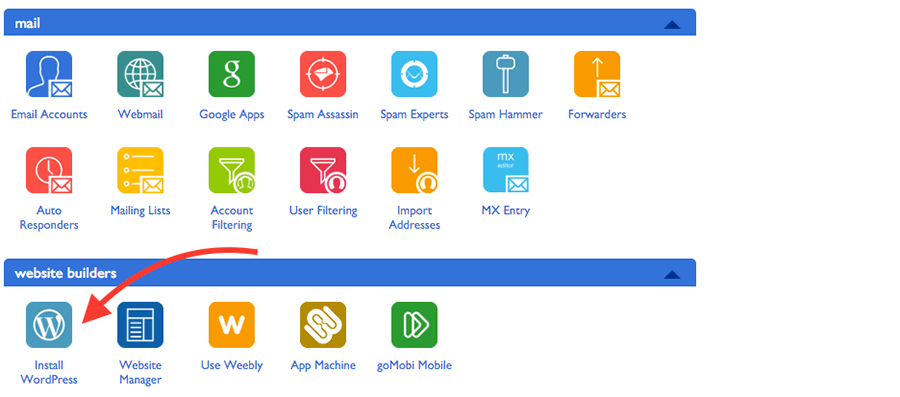
Currently, when you login to your website hosting dashboard you will see the “Install WordPress” icon in the “Website Builder” section.
Click “Install WordPress” to begin.
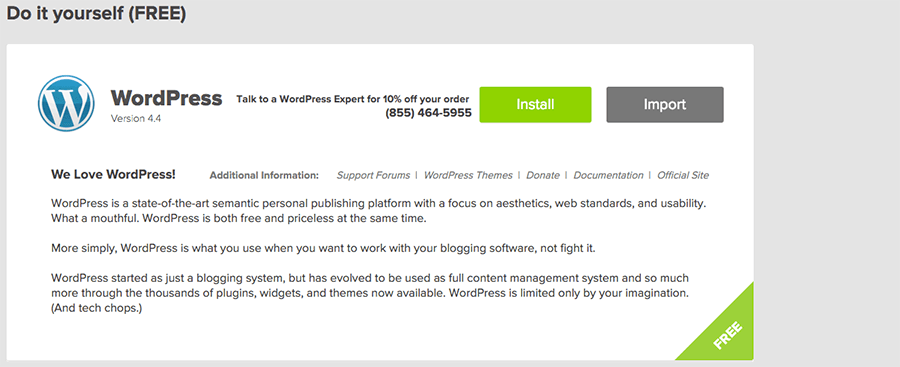
On the next page you should see a brief explanation of WordPress, and an “Install” button.
Click the “Install” button.
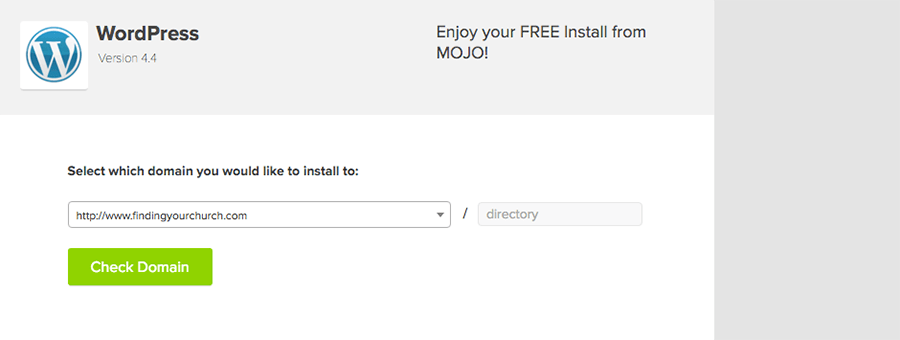
Next, you will need to decide where you want this installation of WordPress to be located inside of your website account.
If this is a completely NEW website, you will leave this page as is and simply click “Check Domain”.
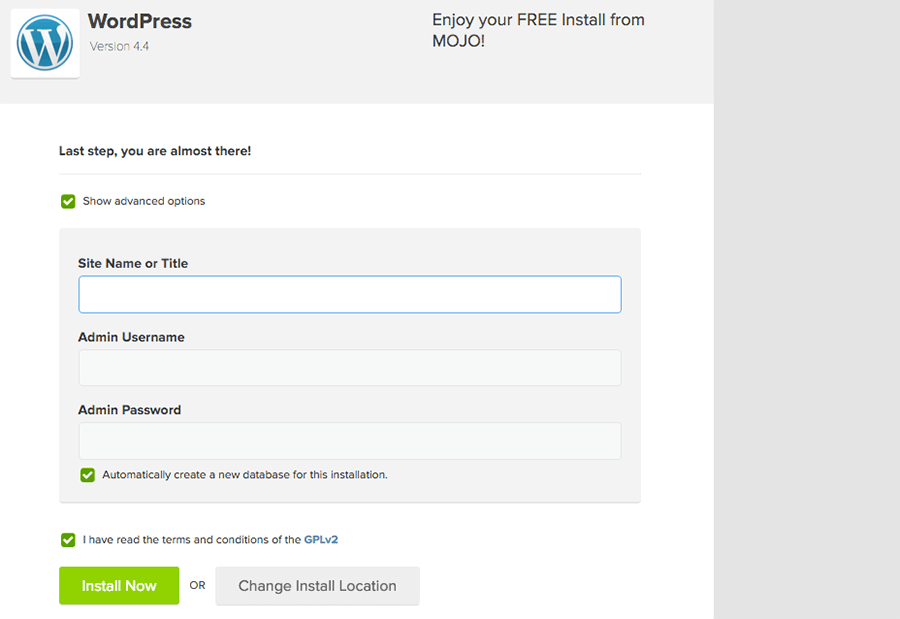
Now you will put in the name of the Website as well as your Username and Password to login to the website.
When you arrive at this page, it will not look like the screenshot below. To get to this view, click the “Show advanced options” checkbox.
You will also want to click the “Automatically create a new database for this installation” checkbox, and that you have read the terms and conditions.
Fill out a Name for your Website and a Username and Password that you want to use to login to the site. Be sure to write this down somewhere for easy access when you need to login.
Then click “Install Now”.
If you are creating another website on the same account in addition to your main website, you can install it in a separate folder on your website.
One reason you would want to do this is possibly if you were creating a Podcast for your Church, but did not want it to be connected to your main website so volunteers could manage it. Or, maybe you are wanting to create an entire Youth Ministry website in addition to your main website.
So you would simply add a folder name to your website address in the box that says “directory” on the “Check Domain page of the Easy WordPress Install process. The easy install feature will create the folder for you to hold the new files for your new WordPress website install.
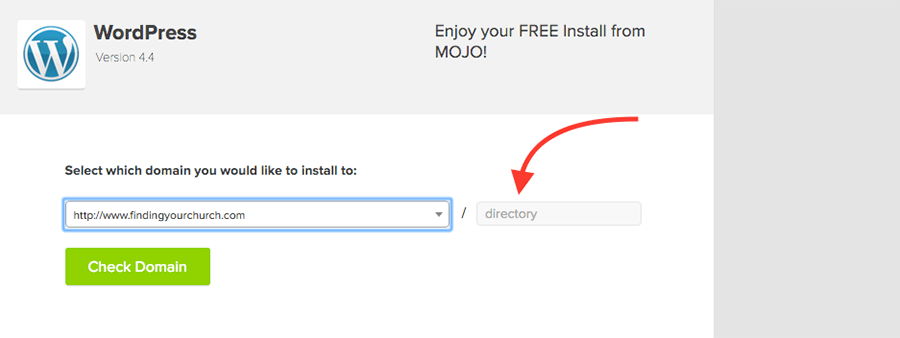
It does not matter what name you give it. It just needs to be one word with no capitals or spaces, and something that makes sense. So if your are creating a Podcast your word would be podcast. If it is a new Youth Ministry website, you may just put youth.
This is NOT the name if your website, but just a folder to hold the files. After entering the new folder name IN PLACE OF the word DIRECTORY, click “Check Domain” and complete the installation steps mentioned above.
Remember, if at any point in the process you have trouble, go back to your Bluehost dashboard and find the “Live Support” or “Help” link to get phone or chat support help with the process.
After completing the Easy Install process you should receive an email from the hosting company with your login information.
However, you should still write down your Admin Username and Password while you are creating it just in case you do not receive that email.
To login to your new site you should enter your website domain name into the address bar of your website browser then add /wp-admin to login with your username and password.
If you created your website on another folder inside the website, you will add the name of that folder to the link. So if you named that folder podcast, you would enter your website domain name in the address bar and add /podcast/wp-admin to login.
When you receive the installation confirmation email from website hosting, it should have your direct login link in the email as well.
Your initial setup of WordPress should now be complete. Again, if you have any issues, contact “Live Support”.