

Submit Your Church Podcast on Google Play
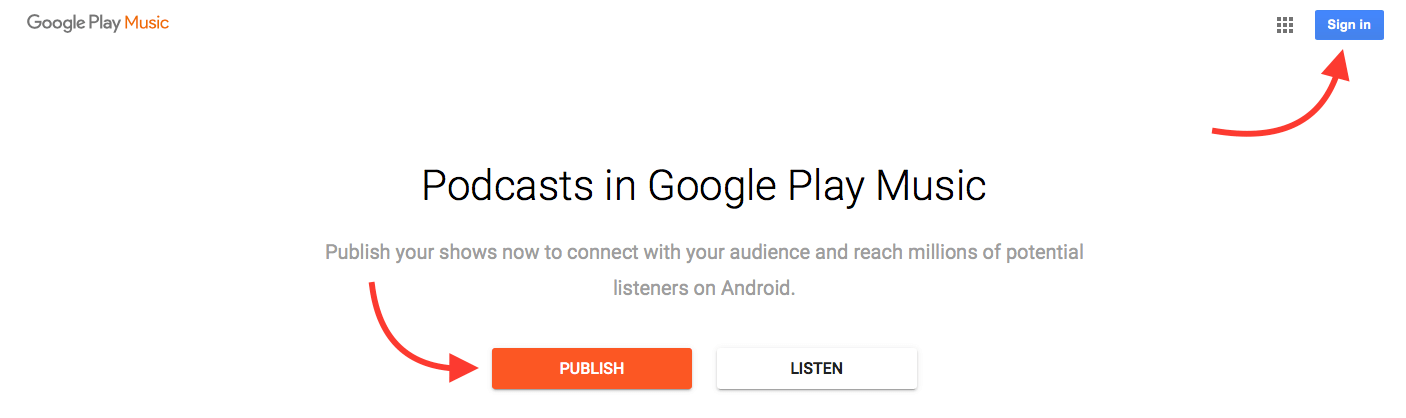
To submit your Podcast to the Google Play Podcast Directory go to play.google.com/music/podcasts/publish and login with your Church Gmail Account. After logging in click the “Publish” button and Google Play will create your Podcasting account.
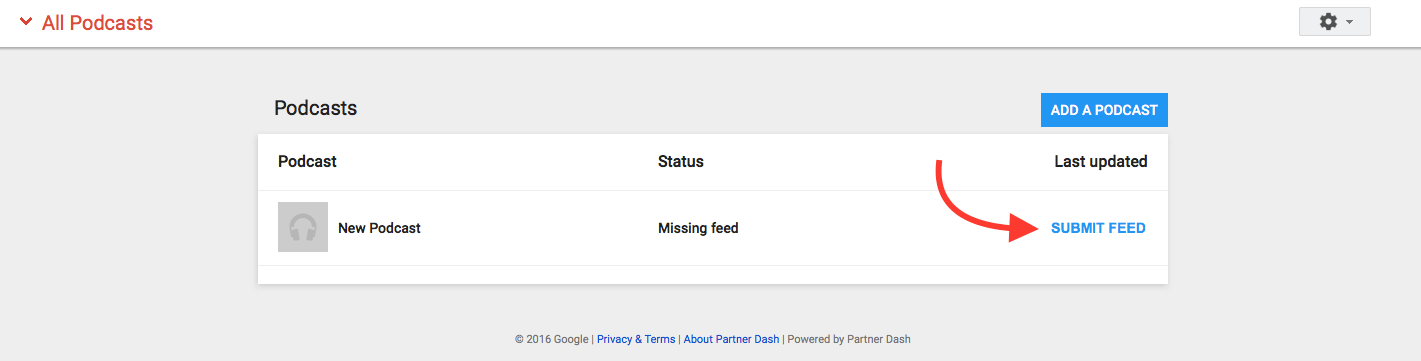
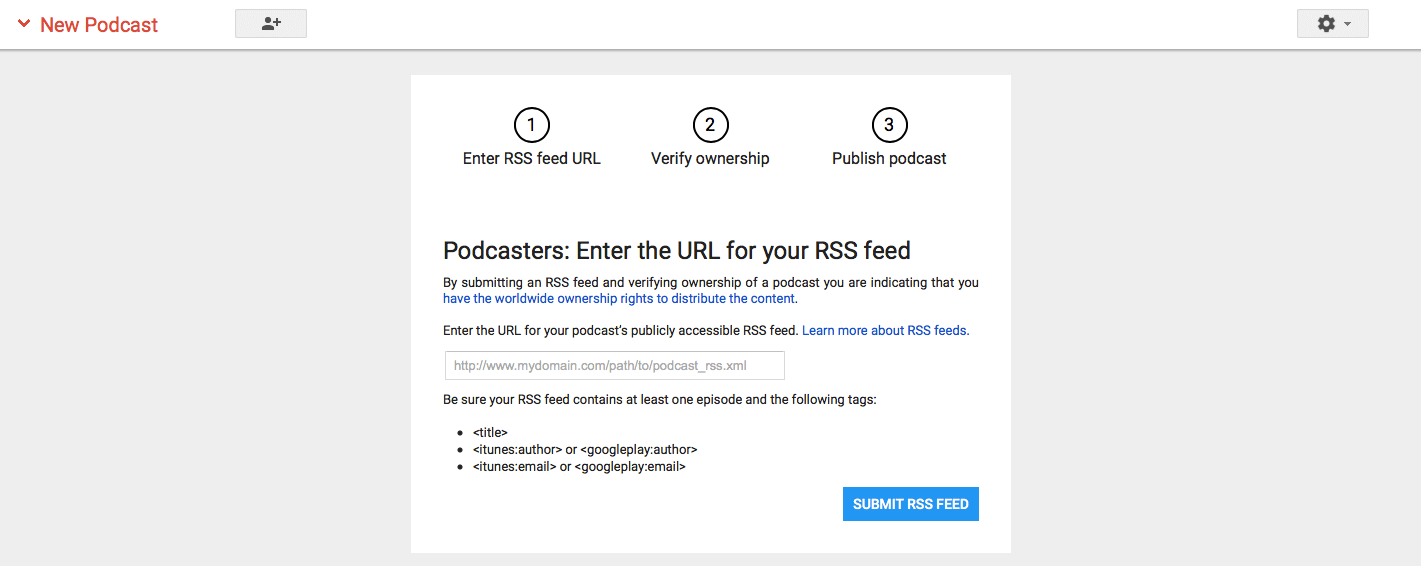
You will then be taken to the “Add a Podcast” page where you will click “Submit Feed” to submit the Podcast Feed that was created when you setup your Podcasting Plugins in the WordPress Dashboard. After you accept the terms of service you will enter your Podcast RSS Feed Link and click the “Submit RSS Feed” button.
You will be asked to confirm the email address that you connected to the Podcast inside the WordPress Plugin Podcast settings. This may be the same as the Church Gmail address that you are logged in to Google Play with, but it could be a different email address depending on what you entered into the Podcast details. Google will send you a verification code in the email that you will enter to confirm that you have access to that email account.
After that, you will have the opportunity to review the details of your Podcast including Cover Art. All of this should match the information you entered inside the Podcast Plugin settings. If everything is still set the way you want it, click the “Publish Podcast” button.
You will then see an overview of the details of your Podcast which should include a statement saying that it is “under review”. You should receive an email after a few days letting you know if your Podcast was approved.
