
How To Setup the Free Church Podcasting Plugin for WordPress
These instructions show how to install, setup and configure the free Blubrry WordPress Podcasting Plugin. With this free option you will have the ability to setup your Podcast, but will not have a Podcast Player on your site. Each Podcast will be on your site in the form of a Blog Post so website users will have to use the blog search feature or scroll through posts to find the sermon they are looking for.
If you want more options and a Podcast Player move on to the next step to learn about the Premium Podcasting Plugin.
Step #1: Find and Install the Plugin on your WordPress Installation
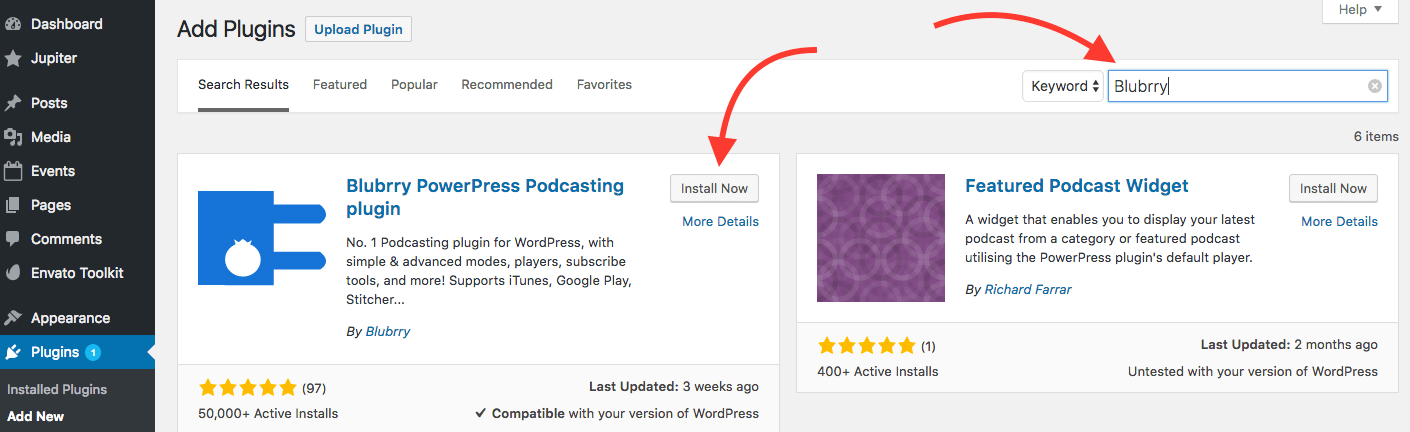
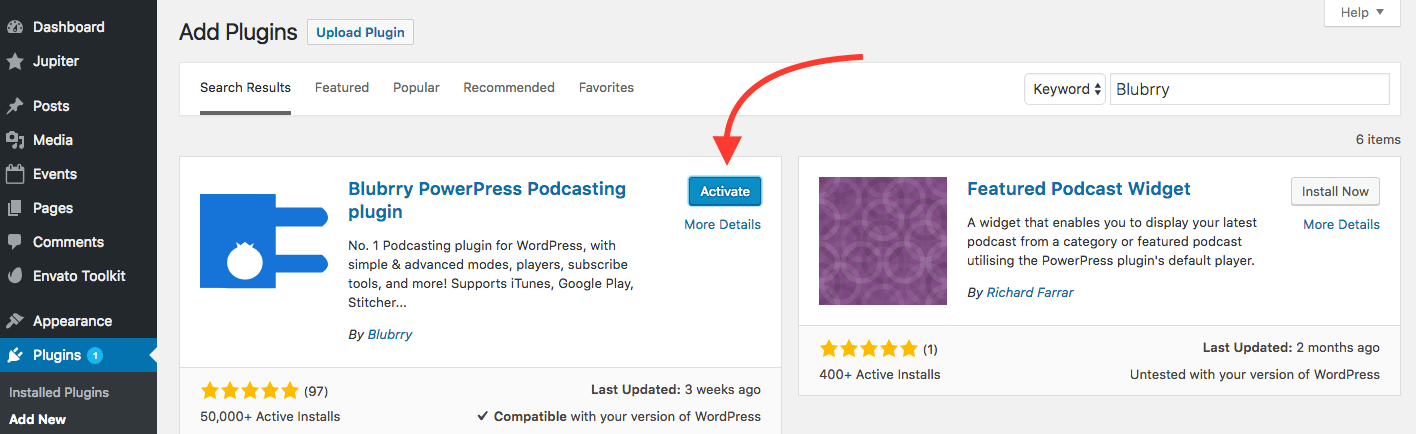
Login to your WordPress install and hover over the Plugins section on the left then click “Add New”. Search for “Blubrry” in the search bar and click “Install”. When installation is complete click “Activate”.

Step #2: Find Blubrry [PowerPress] Settings and Fill in your Podcast Information
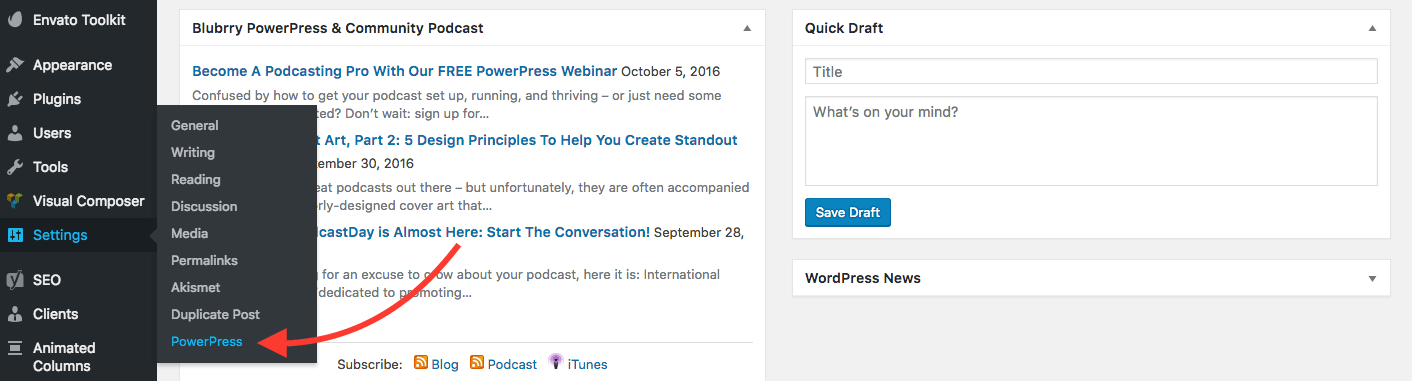
Most likely you will be directed to the Blubrry PowerPress Settings immediately after Activating the plugin. But, to get to the Podcasting settings you will go in your WordPress Dashboard to “Settings” and then “PowerPress”.
In this settings area you will enter all of the information related to your Podcast including uploading your Podcast Cover Art graphic that you were creating in a previous step.
Keep in mind that whatever you enter in this area will show up inside your Podcast information in iTunes, Stitcher and Google Play so be sure to enter it exactly as you would like for it to appear on those sites. Your Podcast Cover Art will also be pulled from this settings area. You will upload the graphic here and not on the Podcast directory sites themselves.
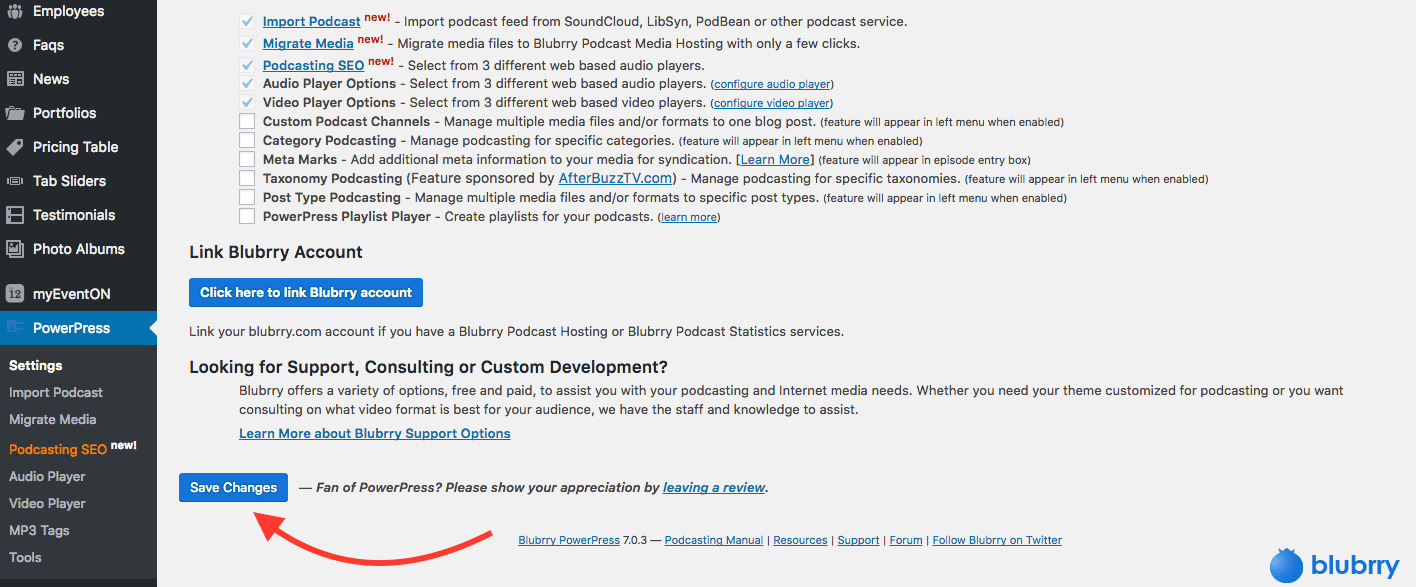
Be sure to click the “Save Changes” button at the very bottom when you are finished adding your Podcast information.

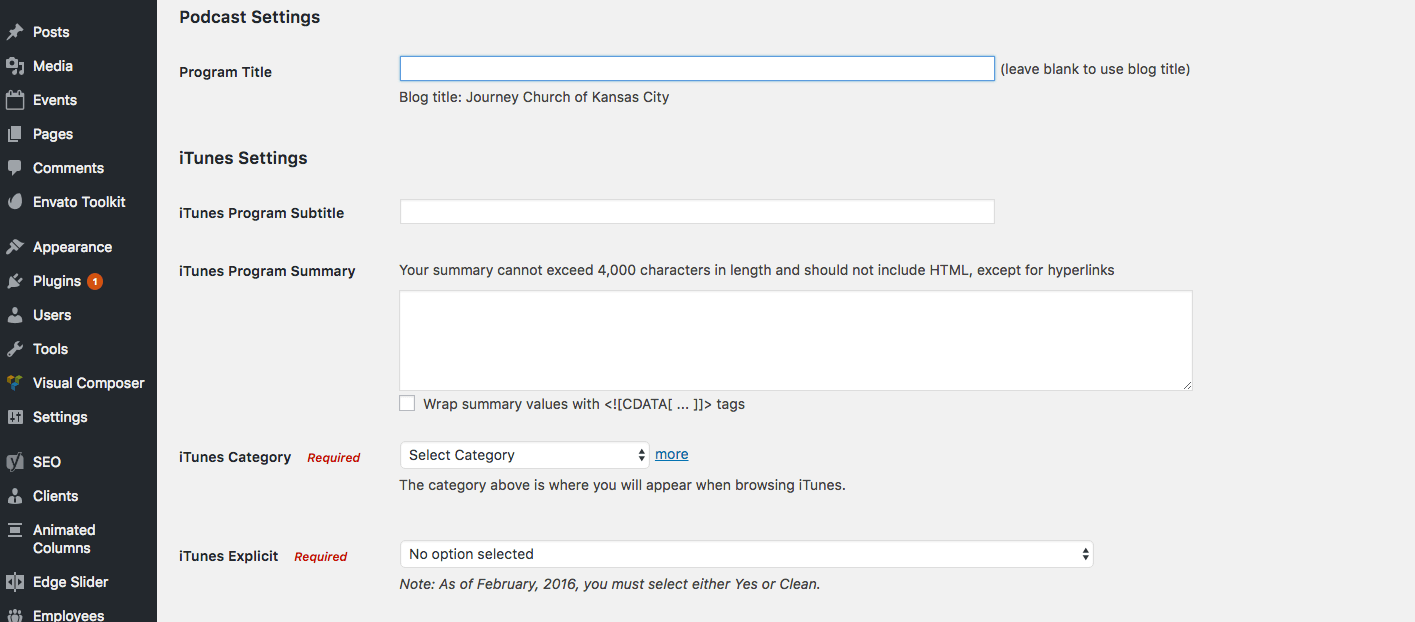
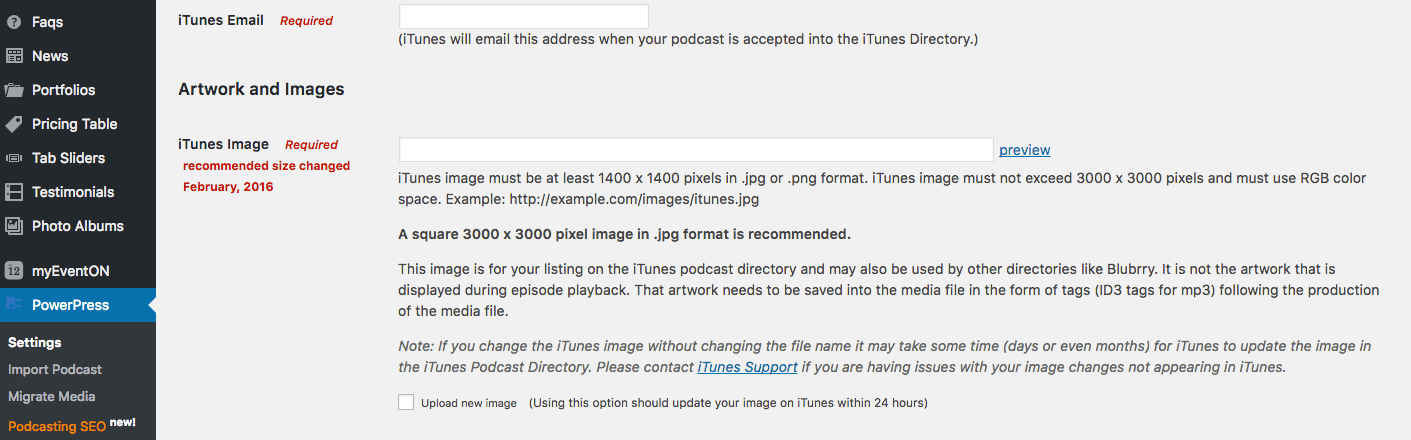
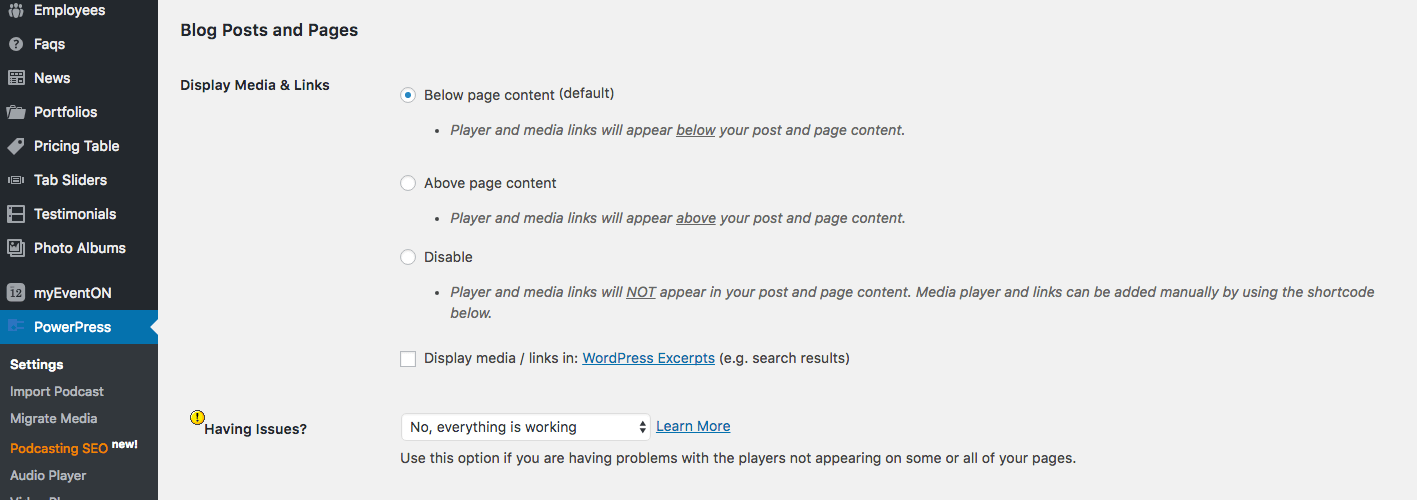
Step #3: Add an Audio File to a Blog Post
Before submitting your Podcast to iTunes or any other Podcast Directory you will need at least one podcastable file attached in your Podcast feed. With the Blubrry Plugin you do this by creating a new blog post and adding your file in the Blubrry Podcasting section under the blog post editing area.
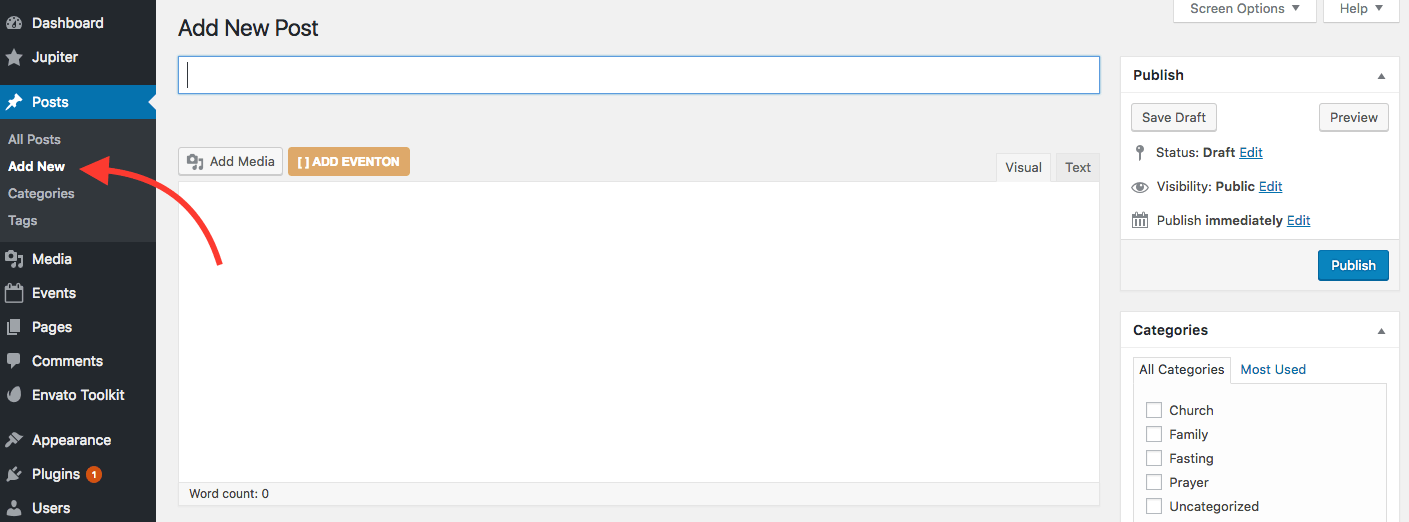
To add a new Blog Post with a Podcast file go to “Posts” in the left sidebar and click “Add New”. Add in the Title of your sermon and then scroll down to the Blubrry Podcasting section of the blog post editor.
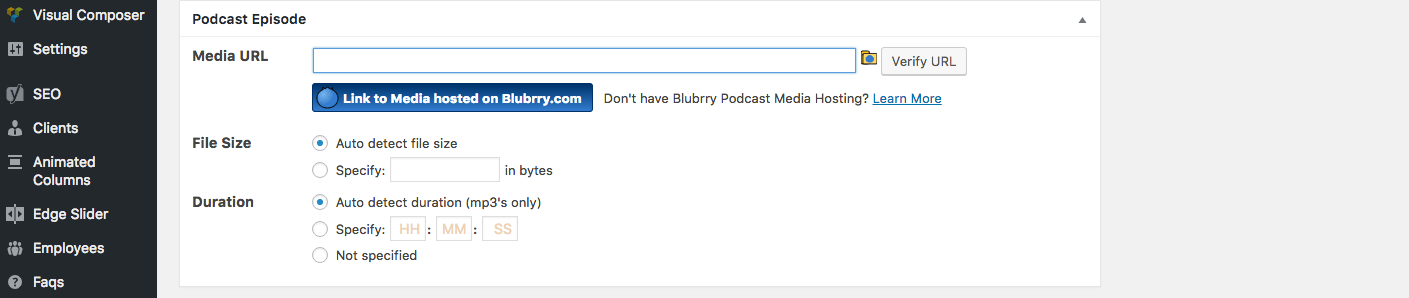
In the Blubrry Podcast section add in the file link that you uploaded and copied from your Amazon S3 account or wherever you have chosen to store your Podcast files. When you have pasted it in the space click “Verify” to make sure everything appears to be working correctly.
This will add a small player button into the post either before or after the content you add to the blog post depending on the setting you chose in Blubrry PowerPress settings.
You can add any content in the blog post that you would like that would support that specific sermon. After you have added all of the content you want, click Publish. Your Podcast file should now show up in the blog post in the blog section of your website. Your Podcast feed should now be ready to submit to the Podcast Directories.
Step #4: Add your Podcast Feed to the Blubrry Podcast Directory
We are primarily adding our Podcast to the iTunes, Stitcher and Google Play Podcast Directories so this is just a bonus. Even though the website says it is the largest Podcast Directory in the World, most of your church members are probably not searching in the Blubrry Podcast Directory for your church.
However, it can still be a benefit to your church to submit it to the Blubrry site because at the very least it will add a link back to your website in the description.
To add your Podcast to the Blubrry Podcast Directory CLICK HERE. Add your Blubrry Feed Link in the “Add Your Podcast” area at the top right of the page then follow the instructions.
You can find your Blubrry Feed Link by going to the PowerPress settings in your WordPress Dashboard and clicking on Step #3 “Submit your podcast to iTunes and other podcast directories”. This link will take you to a Blubrry page where you will find your feed to submit to both Blubrry and the other Podcast Directories.