

Submit Your Church Podcast on iTunes
The first step to submitting your Podcast to iTunes is using an Apple ID to connect your new Podcast to an account.
I would suggest creating an Apple ID for your church if you do not have one.
It is probably not a good idea to connect a Church Podcast to an individual Apple account. You will most likely have to verify the account and have a church credit card connected in the the billing area even though it will NOT cost you anything to submit your Podcast.
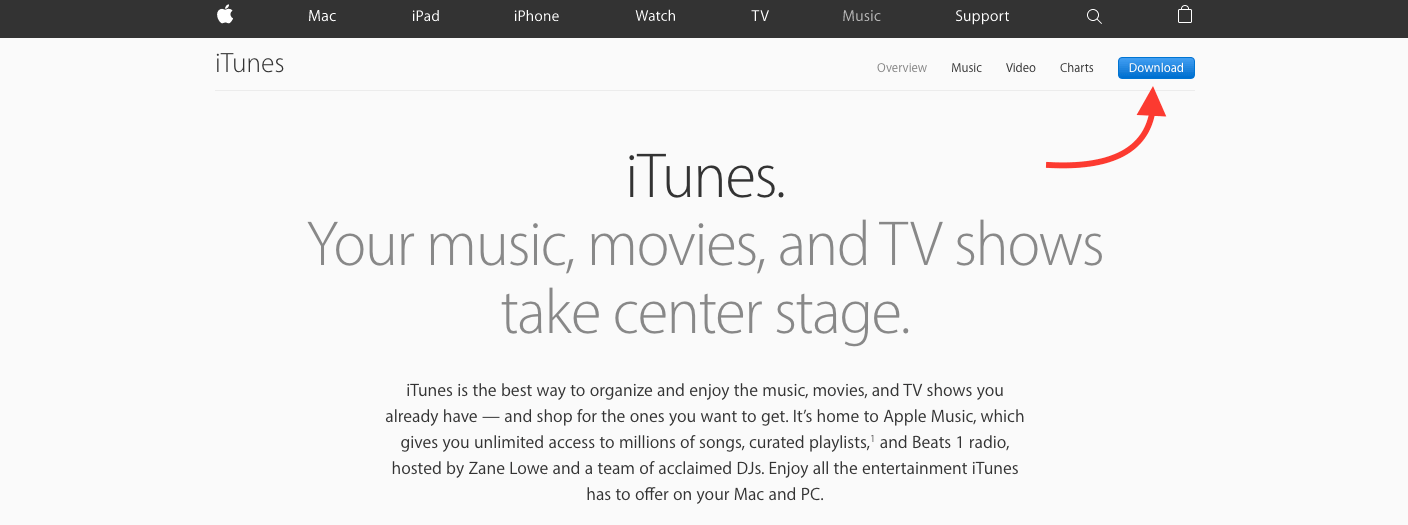
Once you have your iTunes account setup, open the iTunes on your desktop computer. This will already be there, of course, if you are using a Mac. But you can also download iTunes for Windows at www.iTunes.com.
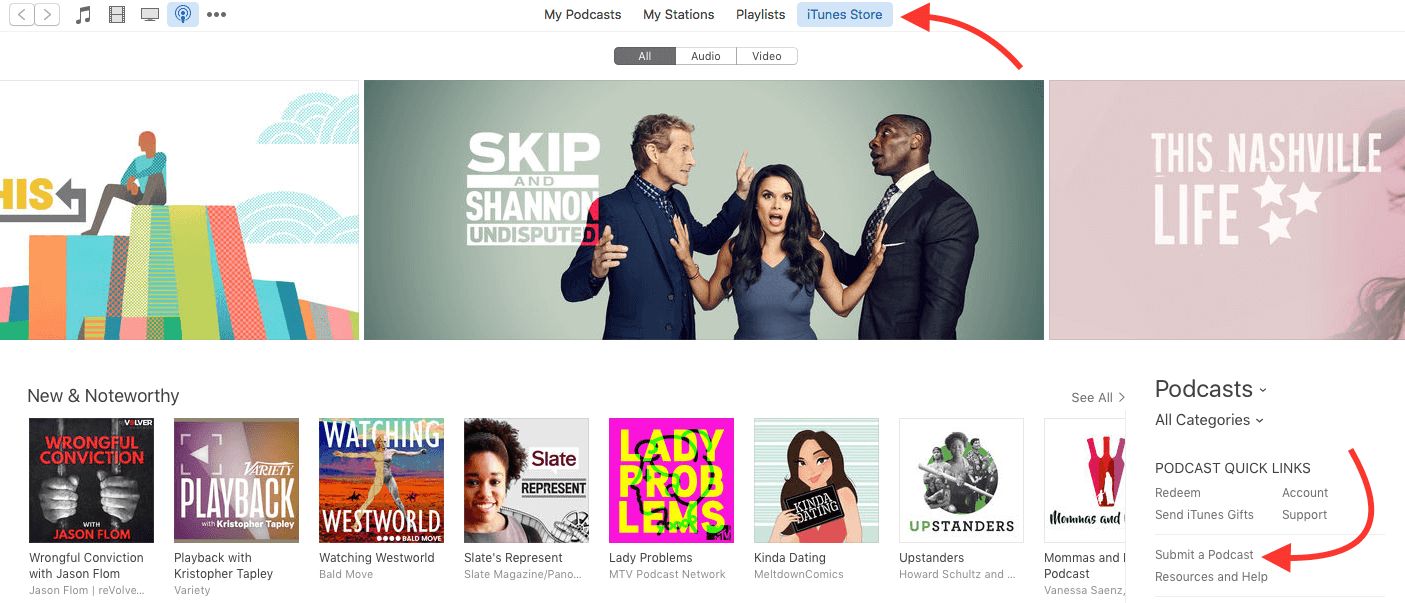
Go to the iTunes Store and find the “Submit A Podcast” link in the right sidebar. Click on that link and it will take you to the Apple Connect area where you will submit your Podcast. Enter your Apple ID login information to access the Podcast submission page.


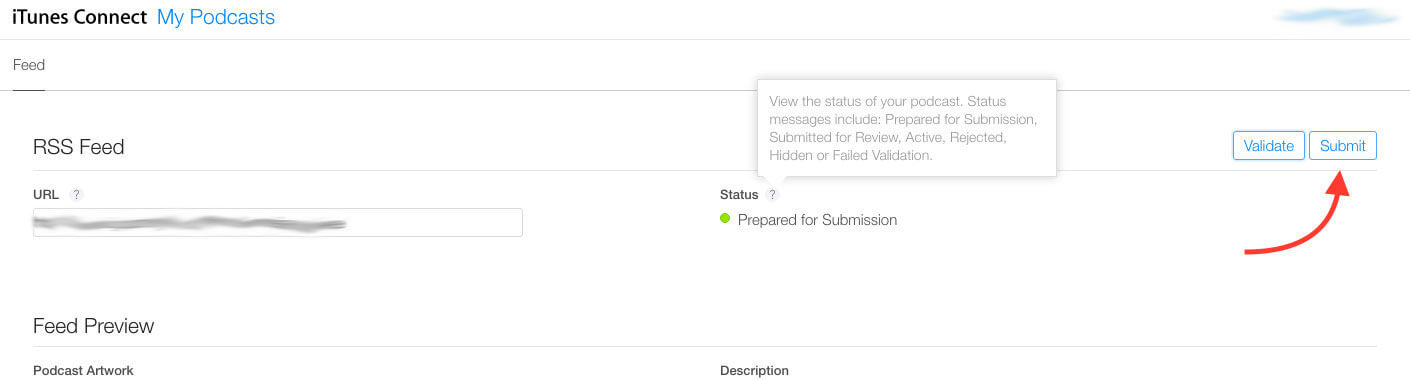
Find your Podcast Feed Link in your WordPress Dashboard depending on the Podcasting Plugin you chose as described in the earlier steps. Enter the Podcast Feed Link and then click the “Validate” button. You should then see a preview of your Podcast Cover Art and the information you entered in the WordPress Dashboard.
Check the information to make sure it is correct, then click the “Submit” button.
You should then see a message informing you that Apple will send you an email at the iTunes account email address letting you know if your Podcast is approved. That process can take a few days.
Once you receive your approval email people should be able to begin searching for and finding your Podcast in the iTunes Store.
